Eldforge Save Slots and Quick Join
Choose the right character save in Eldforge, start another character, or find a public server with an open spot.
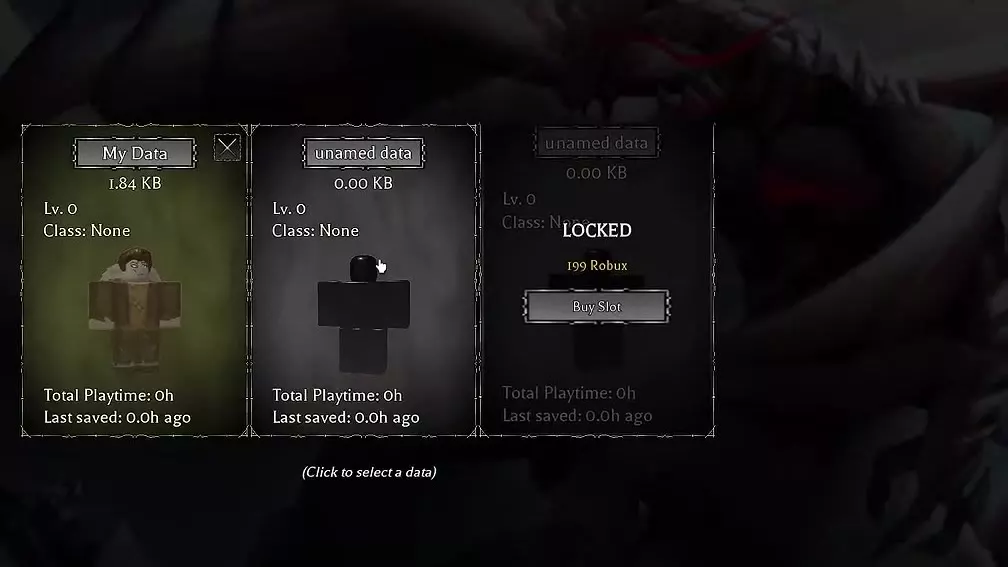
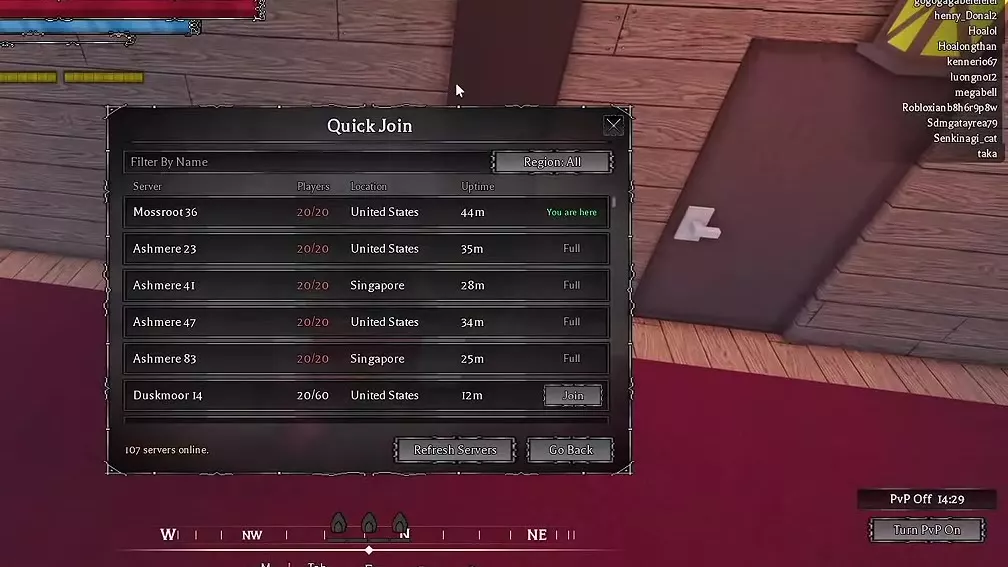
Open Slots on the main menu to load a character or use one of two free slots for a new one. The locked third slot costs 199 Robux. In Quick Join, filter servers by name or region and select Join on a server with room.
Load or Start a Character Save
- On the main menu, select Slots. Play can also open the slot picker.
- Check each card's save name, data size, level, class, total playtime, and last-saved time.
- Select an existing save to load it, or choose an unlocked empty slot to enter class selection and character creation.
An unused card can show Unnamed Data, 0 KB, Level 0, and Class: None. A Level 0 card can already contain data, so check its data size as well as its level before choosing it.
Buy the Locked Third Slot
Eldforge has two free save slots. To add a third character save, open Slots, find the third card marked Locked, and select Buy Slot. The slot costs 199 Robux.
Filter and Join a Public Server
- Open Quick Join and use Filter By Name or change Region from All to narrow the list.
- Select Refresh Servers to update the results.
- Compare each row's player count, capacity, location, and uptime. Select Join on a server with room, or Go Back to leave the list.
You are here marks your current server. Full means the server has reached the capacity shown on its row; look for a row with a Join button instead. Use the capacity on the individual row when choosing a server.
To return to the main menu from an active session, open the Roblox menu, select Leave, confirm, and relaunch Eldforge.
Private Servers and Character Setup
- Use Private Servers and Join Codes to create a private server or join one with a code.
- Follow the Beginner Guide after choosing a new slot to select a class and begin your first hunt.