Eldforge Controls and Settings
Look up Eldforge’s default controls and adjust your keybinds, aiming, language, and graphics.
Open Settings > Keybinds to change keys. Left Shift toggles Shift Lock by default. Use Language on the main menu to change languages, and the in-game Settings gear to enable Low Graphics or Potato Graphics. Mobile players can reposition on-screen buttons.
Default Keyboard Controls and Keybinds
| Action | Default key |
|---|---|
| Sprint | Left Control |
| Shift Lock | Left Shift |
| Crow | Period (.) |
| Pet | O |
| Dash | Q |
| Weapon Awakening | C |
| Race Skill | H |
| Pick Up / Throw | G |
| Lantern | K |
| Emotes | Comma (,) |
| Menu | M |
To change a key, open Settings > Keybinds and select the binding for the action you want to change. The new key replaces its default binding.
Some actions use contextual prompts: hold E when an NPC displays “Hold [E] to Interact,” or press G when an item displays “Press [G] to Pick Up.”
Shift Lock, Crosshair and Mobile Layout
Press Left Shift to toggle Shift Lock, or use your assigned key if you changed it in Keybinds. Open Settings to customize the crosshair.
For the Archer’s right-click move, turn on Shift Lock and line up the target before using the move. With a Wooden Bow, use the circular indicator at the center of the screen to aim. Shift Lock helps with alignment, but the shot can still miss.
On mobile, use the international Roblox client and tap Menu to open the in-game menu. You can reposition on-screen buttons to put them within easier reach; button positions can also be adjusted on PC.
Change Language or Lower Graphics Detail
Change language
Choose a language on your first visit, or open Language from the main menu later. Select English to switch back to English. The available choices are English, Vietnamese, Spanish, Portuguese, Indonesian, and Thai.
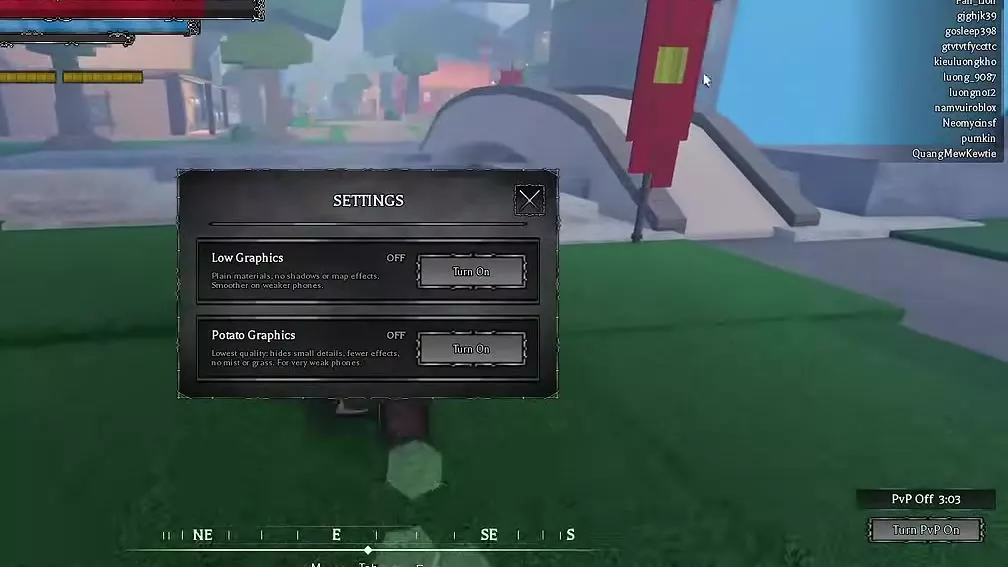
Enable Low Graphics or Potato Graphics
- Open Settings using the in-game gear.
- Select Turn On beside Low Graphics or Potato Graphics.
- Wait for the changes to apply and check that the option reads On.
Low Graphics simplifies materials and removes shadows and map effects, making it a useful choice for lower-performance devices. Potato Graphics hides small details, reduces effects, and removes fog and grass; use it for the lowest detail level or a less cluttered view. The options have separate switches, and both can show On at the same time.
2 objects
| Name | Graphics Level | Suitable Devices | Visual Changes |
|---|---|---|---|
|
Low
|
Lower-performance devices
|
Simpler materials, no shadows
| |
| |||
|
Lowest
|
Very low-performance devices
|
Fewer details and effects
| |
| |||
Combat Controls, Save Slots and Servers
Use the combat guide for combining attacks, blocks, dashes, and movement. For character slots and choosing a public server, see Save Slots and Quick Join.